Anime Crusaders X Performance Settings
Adjust Optimisations to reduce visual load in Anime Crusaders X while keeping the information and effects you want to see.
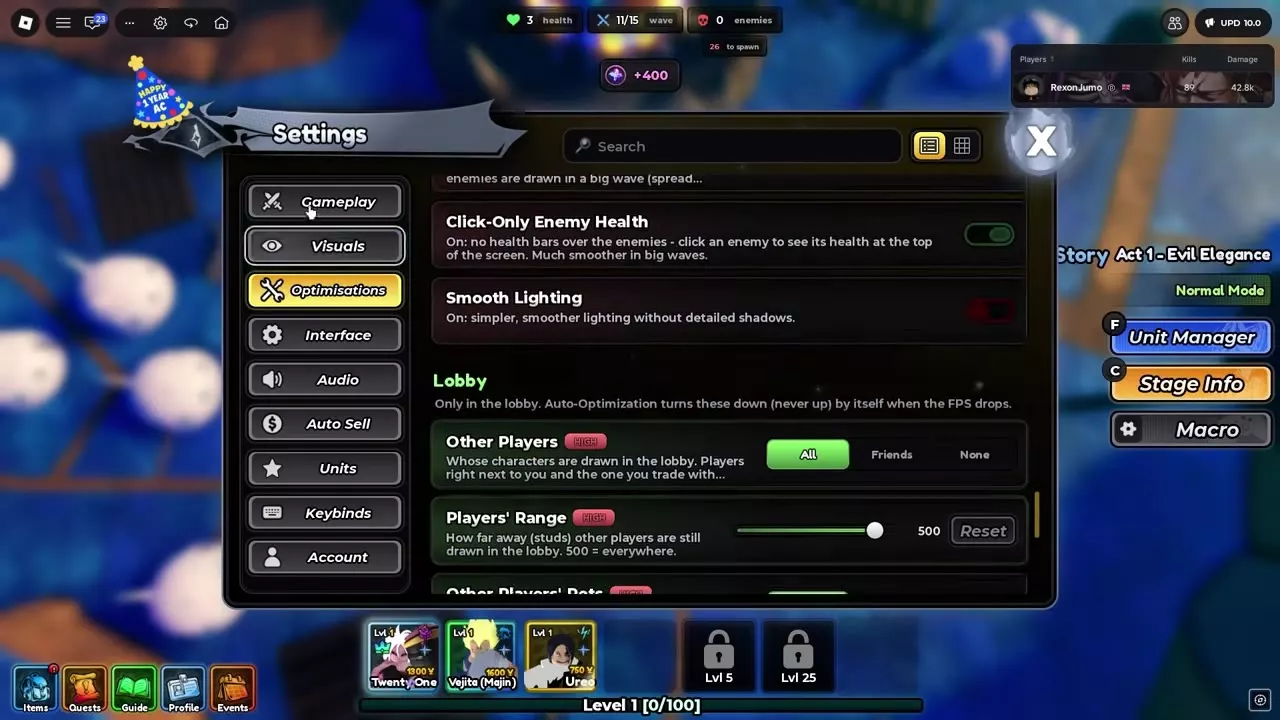
Open Settings > Optimisations and apply Recommended For My Device or choose Low. Reduce animations, effects and enemy health bars as needed, then save your choices as a Custom Preset.
Start with a device preset
Open Settings > Optimisations. Select Reset beside Recommended For My Device to apply the device-recommended settings and enable Auto-Optimization. Alternatively, choose a preset: Low prioritizes smoothness, while Max keeps the full visual presentation. Medium and High offer other preset choices, and Custom restores your saved setup.
On a lower-end device, some performance options can already be enabled. Review the individual switches and restore effects you want to keep.
Reduce effects and animation work
Adjust individual options in Optimisations to trade visual detail for a lighter display:
- Limit Status Pop-ups caps messages such as DEBUFF and STUNNED at five per half-second. Lighter Unit Turning staggers facing updates when many enemies are present; a unit can turn later while continuing to attack the same target.
- Hide Gilded Effects removes Gilded visuals; rejoin for it to take full effect. Hide Special Enemy Effects hides Battlepass and Anniversary enemy auras, while Anniversary enemies keep their party hats.
- Leaderboard Damage Updates offers Live, Every 5s and Game End. Less frequent updates reduce overhead. Turn off Bloom & Sun Rays to remove glow and sun rays, or use Smooth Lighting for simpler lighting without detailed shadows.
- Low Detail Units reduces unit detail. Pause Unit Idle Animations and Hide Attack Animations reduce animation work. You can also turn off your own unit effects, ability VFX and ability cutscenes.
- Hide Trait Auras removes trait auras; lower Trait Aura Amount to retain fewer particles instead. Hide Kill Effects removes effects played when enemies are defeated.
- Set Unit Rings to Moving, Static or Hidden. Use Hide Textures to hide map textures and Simple Upgrade Window for a simplified upgrade interface.
Handle large waves and crowded lobbies
For large waves, enable Click-Only Enemy Health to remove overhead health bars. Click an enemy to read its health at the top of the screen. You can also hide enemies before they spawn and merge large enemy crowds to reduce the number displayed at once.
In the lobby, set Other Players to Friends or None to draw fewer characters. Players' Range controls how far away other players are drawn; 500 studs covers all locations. Pets' Range controls the draw distance for other players' pets. Choose Low, Medium or High for Players' Effects, and adjust Effects Range for lobby particles and beams, Name Tags Range for labels, and NPC Animations for the distance at which NPC animations run. NPC services still work beyond that animation distance.
Auto-Optimization adjusts lobby settings when FPS drops below the device's normal level, lowering distant detail until performance improves. It only lowers settings automatically; it does not raise them again. As nearby crowds grow, other players' pets and effects also scale down, while your own pets and effects remain unchanged.
Save your custom preset
After adjusting the settings, select Save Current under Custom Preset. Choose Custom later to restore that saved configuration.
HUD and Macro settings
For HUD visibility, keybinds and other general options, see Settings and Controls. For automation during a run, see the Built-in Macro Guide.