
Anime Crusaders X Unit Leveling and Collection Management
Raise your main units, free up collection space and keep useful copies safe. Collection handles XP Food, fusion, equipment and locks; Training adds levels and Worthiness even while you are offline.
The Anniversary version's collection level cap is 100. Select a unit in Collection and use Level Up to feed XP Food or Fuse to consume spare units permanently. For timed growth, open Stat Potential → Training: up to three units each gain 25 levels and 100 percentage points of Worthiness per hour, capped at Level 100 and 400% Worthiness. Lock useful copies before selecting fusion materials.
Collection levels and growth options
Open Units to enter Collection, then select the unit you want to improve. The Anniversary version caps collection levels at 100. Your new level remains on the unit after feeding or fusion finishes.
| Method | Entry | Resource | Best use |
|---|---|---|---|
| XP Food | Level Up | Selected food | Immediate growth |
| Unit fusion | Fuse | Spare units | Growth and storage space |
| Training | Stat Potential → Training | Time | Online or offline growth |
Use XP Food when you want an immediate upgrade without sacrificing units. Choose fusion when you also need to clear expendable copies from storage. Keep Training slots occupied for growth while you play or log out; assigned units remain usable.
Collection levels are separate from the upgrades bought with Yen during a match. Use the combat guide for deployed-unit upgrades and battle controls.
Feed XP Food
Have XP Food ready, then select its intended recipient before adding food.
- Open Collection and choose Units or Heroes. For Eskanoor, use Heroes.
- Select the recipient and open Level Up.
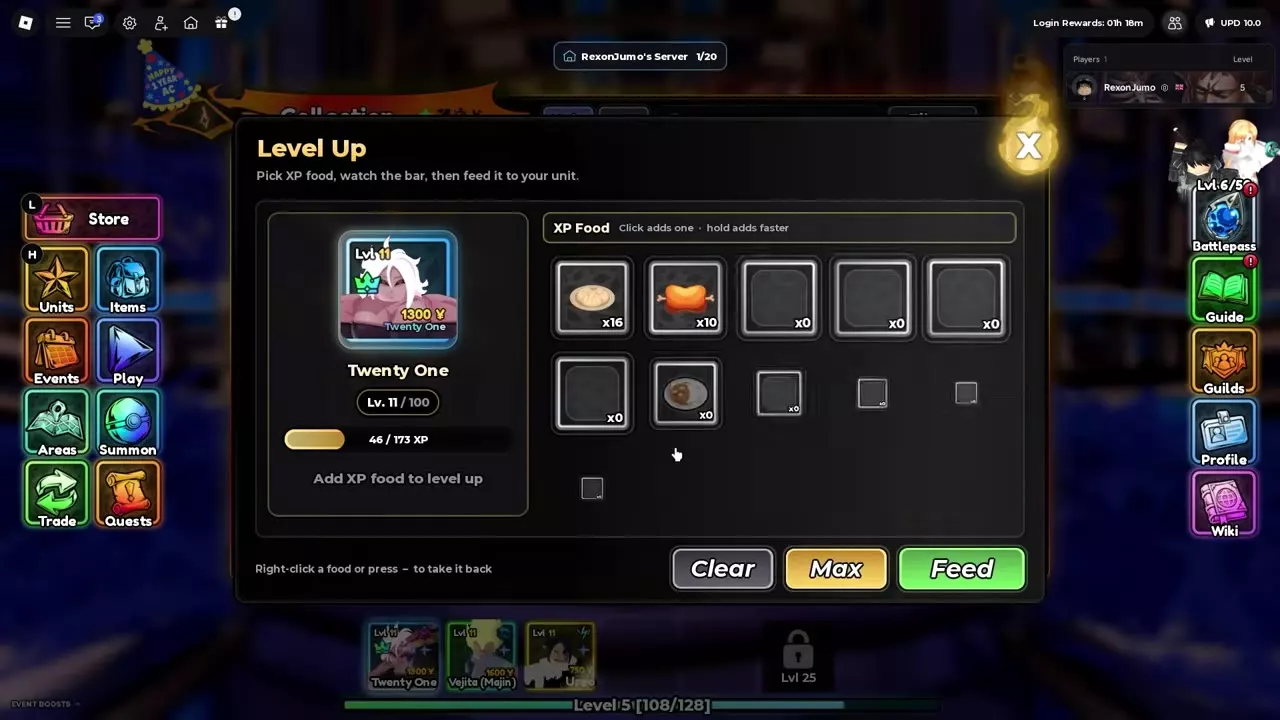
- Click a food to add one, or hold to add it faster. Right-click the food or press the minus control to remove it. Clear resets your selection; Max maximizes it.
- Review the selected quantities, XP gain and projected level increase.
- Press Feed to consume the selected food. Click through the result, then check the updated level and attributes in Collection.
For example, Twenty One at Level 11 with 46/173 XP reaches Level 15 after receiving 16 Juicy Steamed Buns and 10 Meat, totaling 900 XP. In this Crusader configuration, damage rises from 1,590 to 1,739, while the attack interval stays at 4.89 seconds and range stays at 17. Use your recipient's preview to choose the amount to spend.
For food purchases and prices, see the Gold Shop price list.
Fuse spare units
Fusion permanently consumes the selected material units and gives their XP to the recipient. Higher-rarity materials provide more XP. Locked and equipped units are skipped; use Quick Lock and your equipment controls to keep needed copies out of the selection.
- Select the unit that should receive XP in Collection, then open Fuse.
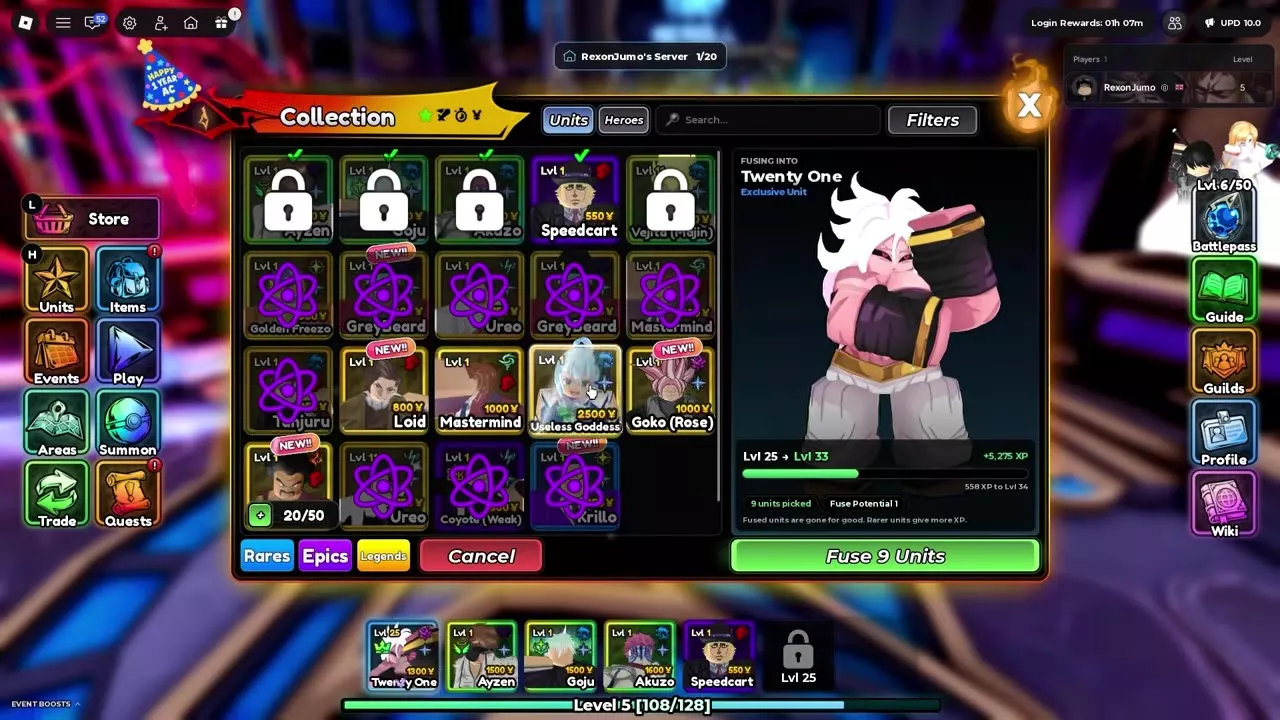
- Select expendable units individually or use Rares, Epics and Legends to select by rarity. Hold and drag to select multiple units. Click a selected unit again to remove it; purple fusion symbols mark selected materials.
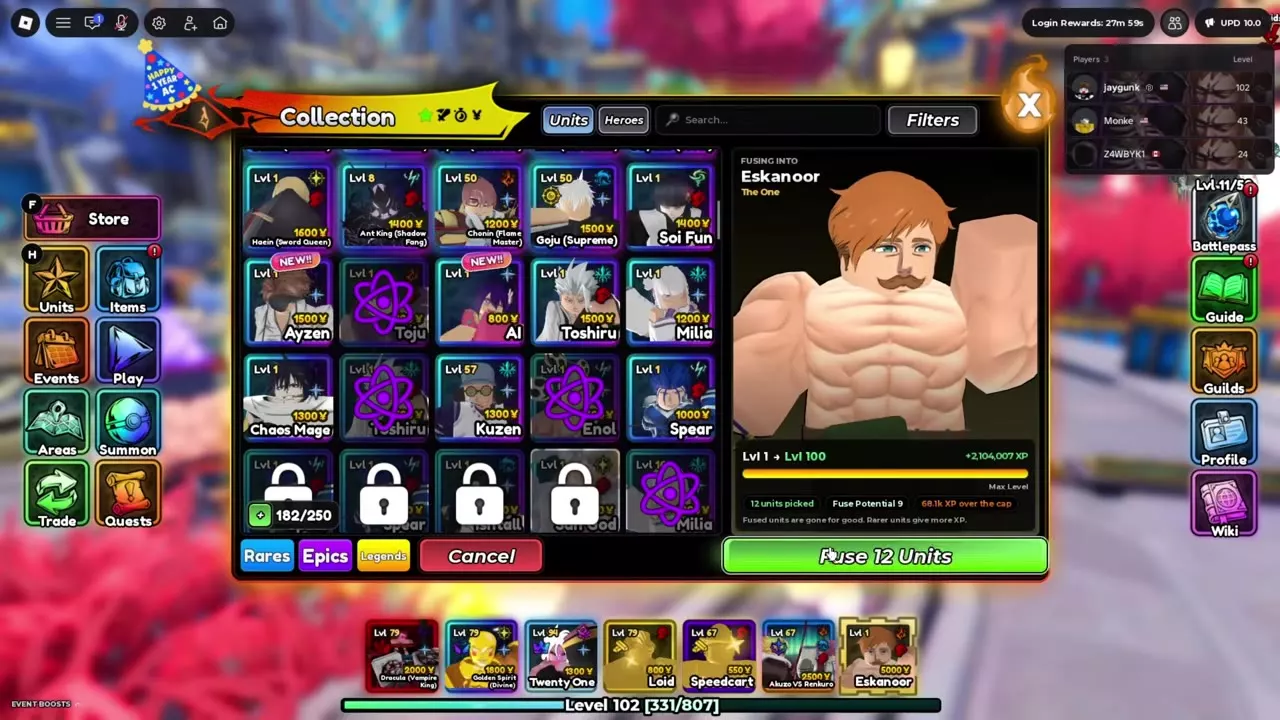
- Review the material count, XP gain, projected level and Fuse Potential. If the preview reaches Level 100, check the excess-XP display and reduce the selection to avoid spending unnecessary copies.
- Use Pick Units to Fuse or the Fuse button showing your selected count. Check the material count in Confirm Fuse.
- Choose Confirm to consume the materials, or Decline to cancel. After confirming, read the result and return to Collection.
Keep useful roles before selecting by rarity
Retain substitutes and support units you still need. A backup Ureo gives you another unit to equip, while Useless Goddess has Hybrid and Buff roles worth considering before consumption. Decide which copies to keep before using the rarity buttons; use the team-building guide to choose complementary roles.
Use the preview to compare selections
In a Level 25 Twenty One example, selecting nine materials previews 5,275 XP and Level 33. Removing a Level 11 Ureo changes the selection to eight materials, 4,531 XP and Level 32. This makes the tradeoff visible before confirmation: keep the backup or spend another material to reach the higher previewed level.
The final nine-material fusion in that example reaches Level 33. Damage rises from 2,176 to 2,603, while the attack interval remains 4.89 seconds and range remains 17. The required material count depends on the units selected and the recipient's current progress.
Train online or offline
- Open Stat Potential, then choose Training.
- Assign up to three units.
- Leave them assigned while you play or log out. You can keep using them and remove them from Training at any time.
Each assigned unit gains 25 levels per hour, stopping at Level 100, and 100 percentage points of Worthiness per hour, stopping at 400% Worthiness. Training continues offline.
Use Training for units you want to develop without consuming spare copies or XP Food. Since they remain usable, your active team can train while you continue clearing stages. For Worthiness's role in rerolling attributes, see Stat Potential and Worthiness.
Equipment, locks and storage
Equip ordinary units and Heroes
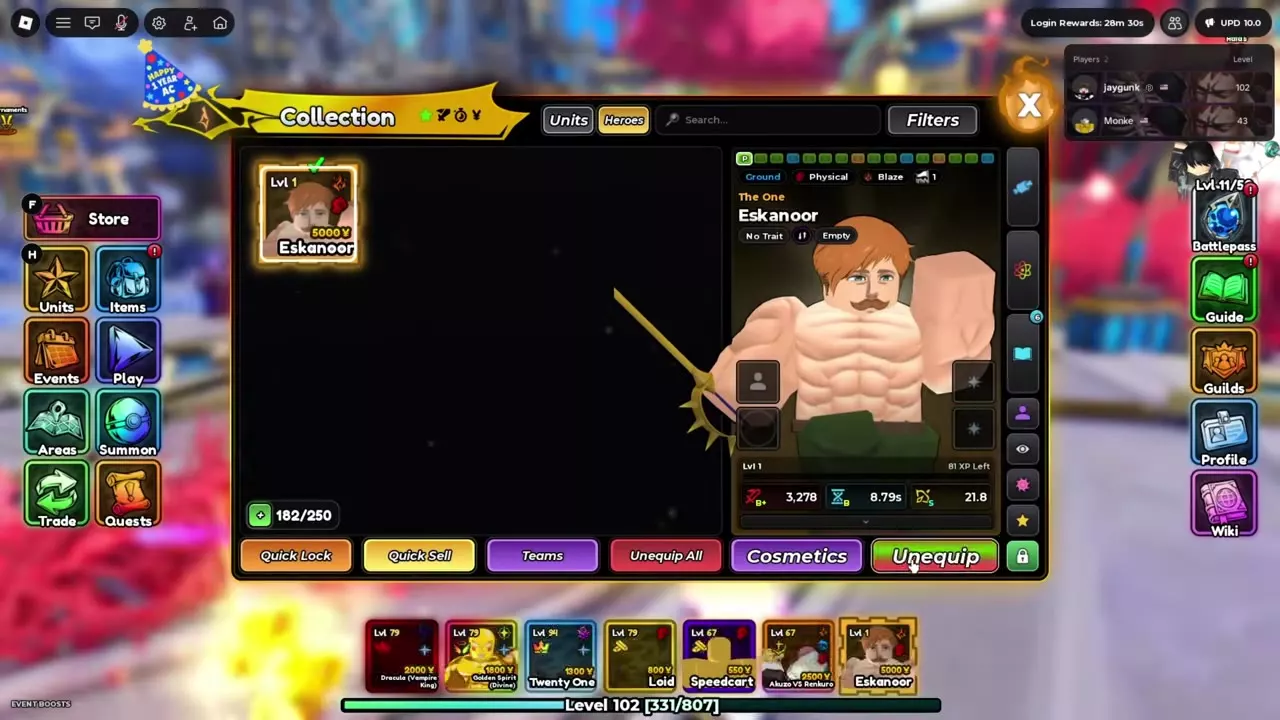
Open Units to enter Collection. Choose Units for ordinary units or Heroes for heroes, select a card, then press Equip. Use Unequip to remove it, or right-click a card to equip or unequip it quickly.
An equipped card has a green check, appears in the hotbar and shows Unequip as its action. Use Unequip All when rebuilding your lineup.
Additional ordinary team slots have player Level 5 and Level 25 requirements; the sixth ordinary slot unlocks at Level 25. These are player-level requirements, separate from a unit's collection level. Each player also has one separate Hero slot in the hotbar, and Teams includes a Hero slot. Select Eskanoor from Heroes to equip him there.
Lock and unlock multiple copies
Choose Quick Lock, then select units to lock or unlock. Hold and drag to select several, use Lock All or Unlock All for the whole collection, or choose Cancel to leave Quick Lock.
If fusion displays “Cannot select a locked unit,” leave the material picker, unlock only the copy you intend to consume through Quick Lock, then reopen Fuse. Unequip that copy as well if it is still equipped.
Free space or expand storage
Read the Collection counter as stored units / current capacity. When you need more room:
- Use Quick Sell to select unwanted units for sale.
- Fuse expendable units into a recipient you want to level, combining storage cleanup with growth.
- Speak to the lobby Bartender to increase storage.
The Unit Storage Game Pass is a separate paid expansion option; compare its benefit and price on the Game Pass page.
Restore a stage's Last Team
- Select a stage you have previously cleared.
- Use Last Team to equip the team that last cleared that stage.
Each stage remembers its own successful lineup. Use this shortcut when returning to a stage after changing your equipped team.
Search, filters and collection feedback
Choose Units or Heroes, then enter a name in search or open Filters to narrow the collection.
- Passive search and filtering help find units by ability.
- Stat filters narrow your choices by attributes.
- Don't Have finds units missing selected traits or grades.
Hover a card to inspect its tooltip, or select it to open the model, attributes and controls on the right. Cards show the unit's level, deployment cost and equipment status. Curses also display on inventory cards and unit tooltips.
Use More Stats for additional attributes and View for details including Original Owner and acquisition time. A newly acquired unit keeps its NEW!! marker until you inspect it.
When a unit is ready to evolve, a popup provides a button to the Evolve altar, and ready units appear first in the evolution picker.
Other features—including Trait Reroll, Stat Reroll, Stat Fuse, Shiny Transfer and item recipient selection—open Collection with a Select button. Choose the intended recipient there, then press Select to return it to the feature you opened.