
Anime Crusaders X Built-in Macro Guide
Use the built-in Macro to automate a stage or run a queue of tasks. Configure your units, placement areas and timing, then control the run from its floating panel.
The built-in Macro is free and has no level requirement. Enter your target stage, open Macro, configure Units and placement, then select This Stage, Loop or Routine in Run. Choose an optimization setting and press Start. Use Pause, Stop or Open on the floating panel to control the run.
Run modes and controls
Smart Macro automatically places, upgrades and sells units. It prioritizes farms, focuses bosses, handles leaks and switches to anti-air units when Flying enemies arrive.
| Run mode | Purpose |
|---|---|
| This Stage | One run of the current stage |
| Loop | Repeat the current stage |
| Routine | Follow a configured task queue |
Start a run
- Enter the stage you want to automate.
- Click Macro on the right side of the match screen.
- Configure Units, including slot settings and placement areas, using the sections below.
- Open Run and select This Stage, Loop or Routine. Configure a task queue before starting Routine mode.
- Choose Optimisation while macroing: None, Low, Medium, High or Extreme. Extreme is a recommended starting choice for a very weak computer.
- Press Start.
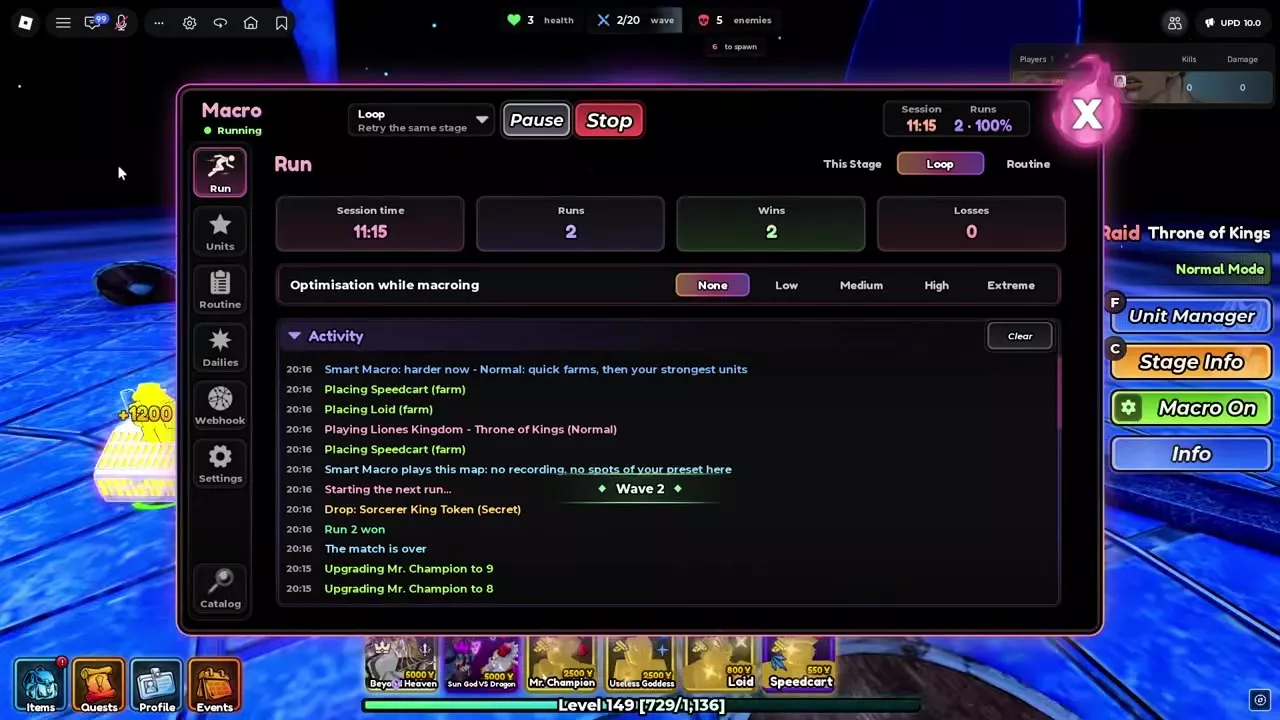
The match button changes to Macro On, and the floating panel displays the current task and run status. For repeated attempts at the same stage, use Loop with Retry in Match settings.
Control and inspect the run
- Pause: pause the Macro.
- Stop: end the Macro session.
- Open: return to the Macro settings from the floating panel.
In Run, read Session time, Runs, Wins and Losses. Expand Activity to inspect placements, upgrades, drops and run results. Clear removes the activity entries.
Unit slots and advanced timing
Open Macro → Units → Slots. The panel contains six unit slots and an H Hero slot. Use Fill My Team to populate the preset from your equipped team, and Rename to name it.
Bind and configure a slot
Select a slot and open Main. Choose how it identifies its unit:
- Follow the team position: use whichever unit occupies that position. This suits a setup you want to keep tied to your equipped team order.
- Lock to This Unit: bind the slot to a specific unit, then add up to five replacements. Use this when the configuration should stay attached to that unit as your team order changes.
Configure Slot enabled, Targeting, Auto upgrade and Auto abilities for the selected slot. Set Placement limit to restrict how many copies the Macro deploys. For example, choose one when you want a single copy of a unit that permits multiple placements.
Set placement and upgrade timing
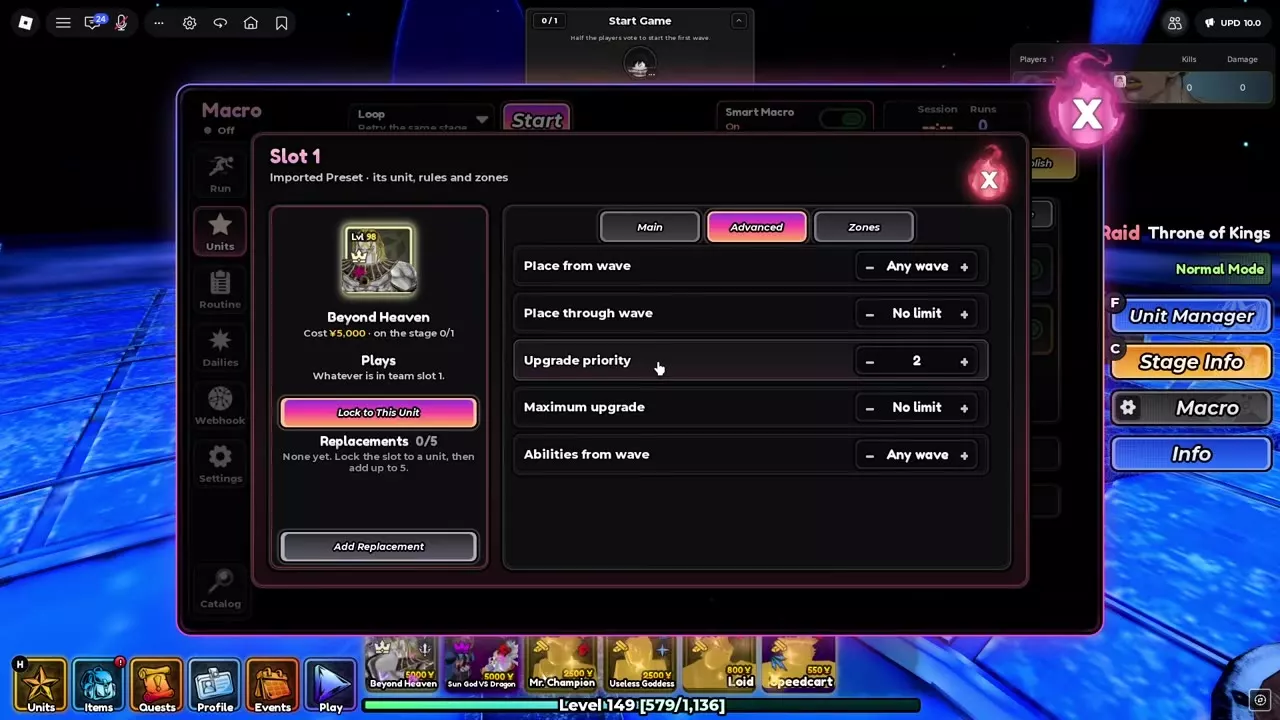
Open the slot's Advanced tab.
| Setting | Controls |
|---|---|
| Place from wave | Placement start wave |
| Place through wave | Placement end wave |
| Upgrade priority | Upgrade order |
| Maximum upgrade | Upgrade cap |
| Abilities from wave | Automatic ability start wave |
Use the placement window to control when a slot enters play, and Upgrade priority to arrange its upgrades relative to other slots. Set Maximum upgrade when you want to stop before a later upgrade changes an attack shape you want to retain, such as keeping a cone AoE instead of advancing to a full AoE.
Use Abilities from wave to reserve automatic ability use for a specific part of the stage. If your plan needs a time stop starting on wave 14, set this field to 14.
Zones, shared areas and recordings
Open Macro → Units → Placement to choose between Zones and Recording placement.
Set slot-specific zones
- Select Zones under Placement mode.
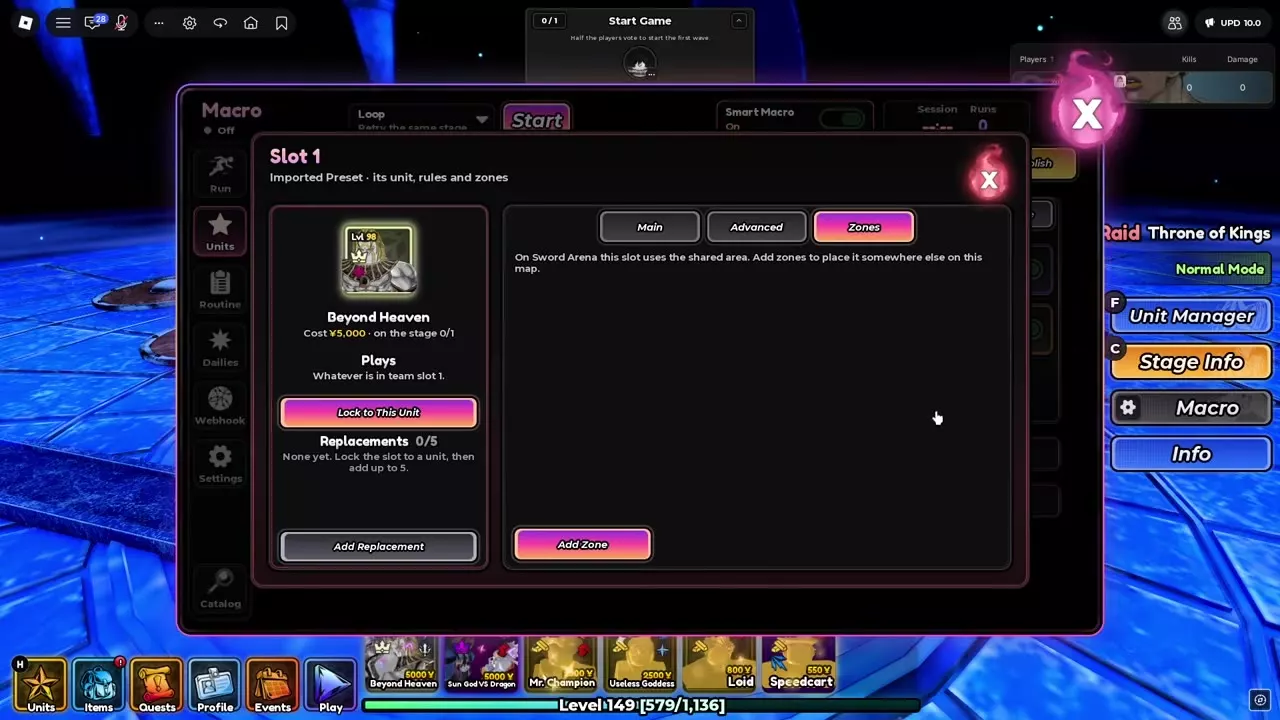
- Open the unit slot you want to configure, select its Zones tab and click Add Zone.
- Move the zone preview to the desired location on the map.
- Resize it with the mouse wheel or the minus and plus controls.
- Click to place it, or press Esc or Cancel to cancel.
Slot zones give that unit placement positions elsewhere on the map instead of relying on the shared area.
Configure the shared area
In the global Placement panel, use Shared area → Set on Map to choose a shared location. Use Reset to reset it.
The same panel contains Unit radius, Show the circles while playing, Auto skip waves and Smart placement on new maps. Turn on the circle display when you want to see the Macro's automatic placement positions during play.
Find recording controls
Open Units → Recordings. The panel separates Record a run, This map and Your recordings:
- Use Record or Next Run under Record a run.
- Read This map for the current map's recording status.
- Use Manage under Your recordings to open the recording library.
For recorded placement, select Recording under Placement mode. Smart placement learns where units stand.
Routines and Auto Challenge
Use a Routine to run different stages in sequence. Use Dailies → Auto Challenge to schedule challenge categories alongside your Macro automation.
Build a Routine
- Open Macro → Routine and click New or New Routine.
- Select the Routine from the selector and click Add Task.
- Choose the task's Mode, World, Act and Difficulty.
- For a run-count target, set Play until to Runs and enter the requested count.
- Add more tasks, then use their up and down controls to arrange the queue. Use a task's delete control to remove it.
- Choose When it ends → Repeat if you want the queue to repeat.
- Use Set as Start to designate the starting task, or Play from Here to begin at the selected task. Select Routine in Run for queue-based automation.
For example, a task can request 5 runs of Story → Planet Namak → Act 1 - Evil Elegance → Normal. A mixed queue can request three Raid runs followed by ten Story runs, giving each stage its own place in the sequence.
Configure Auto Challenge
Open Macro → Dailies → Challenges.
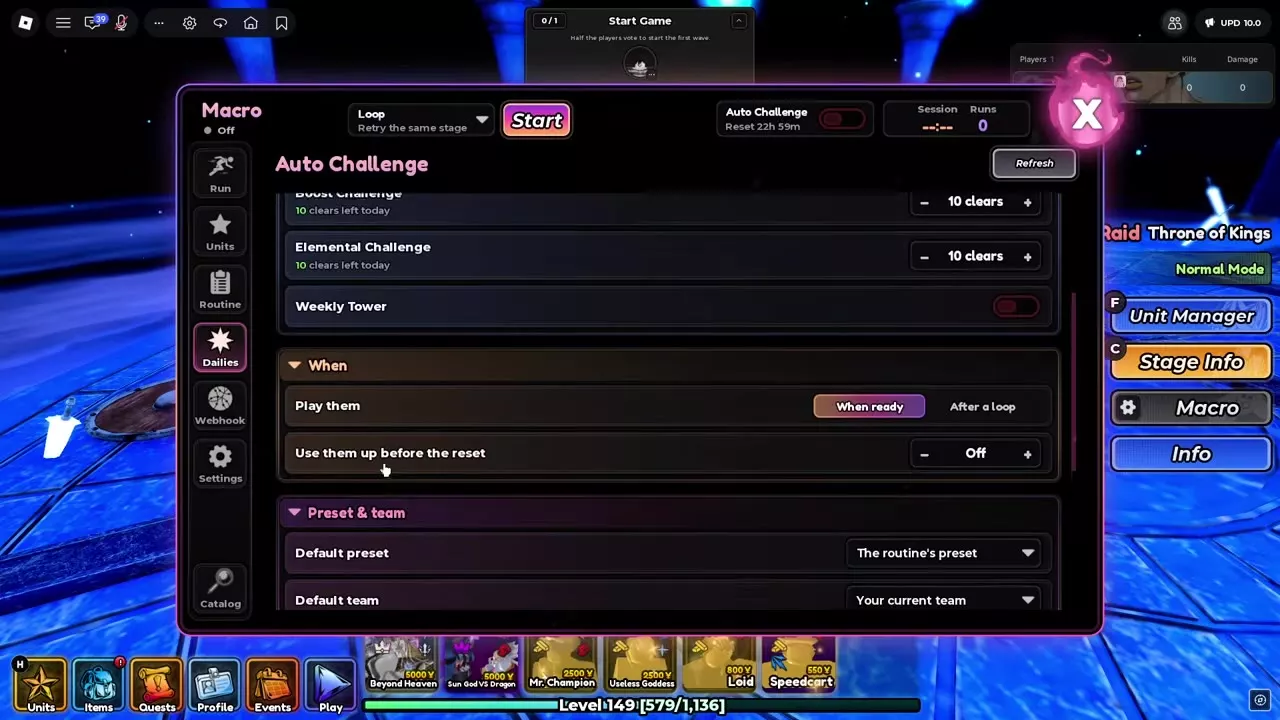
| Category | Selection control |
|---|---|
| Daily Challenge | On/off switch |
| Weekly Challenge | On/off switch |
| Resource Challenge | Requested clear count |
| Boost Challenge | Requested clear count |
| Elemental Challenge | Requested clear count |
| Weekly Tower | On/off switch |
Set the categories you want to include. Use the minus and plus controls for Resource, Boost and Elemental clear counts, alongside the displayed clears remaining today. For challenge rules and limits, see Challenges.
Expand When and choose Play them → When ready or After a loop. Choose When ready to prioritize available challenges; choose After a loop when you want challenge handling to wait until the loop finishes. Review Use them up before the reset and the reset countdown. Refresh updates the challenge display.
Expand Preset & team to select the default preset and team. The default choices include The routine's preset and Your current team. Each of the six categories also has its own preset and team selectors, so a challenge can use a different setup from your farming run.
Finally, enable the Auto Challenge master switch. The individual category settings and the master switch are separate: selecting categories alone does not enable Auto Challenge.
Match behavior and card priorities
Set retries and repeated-loss handling
Open Macro → Settings → Match → Loop. Under When a match ends, choose Retry for another attempt at the same stage or Next for stage progression. Restart at wave provides a wave-based restart setting.
For a response to repeated failures, expand Smart losses:
- Enable Smart losses.
- Set Losses in a row to your chosen consecutive-loss count.
- Under Then, choose Skip the task or Use a backup.
Skip the task suits a queue you want to move past a failing stage. Use a backup is the alternative when you want the configured backup response after that loss count.
Arrange automatic card choices
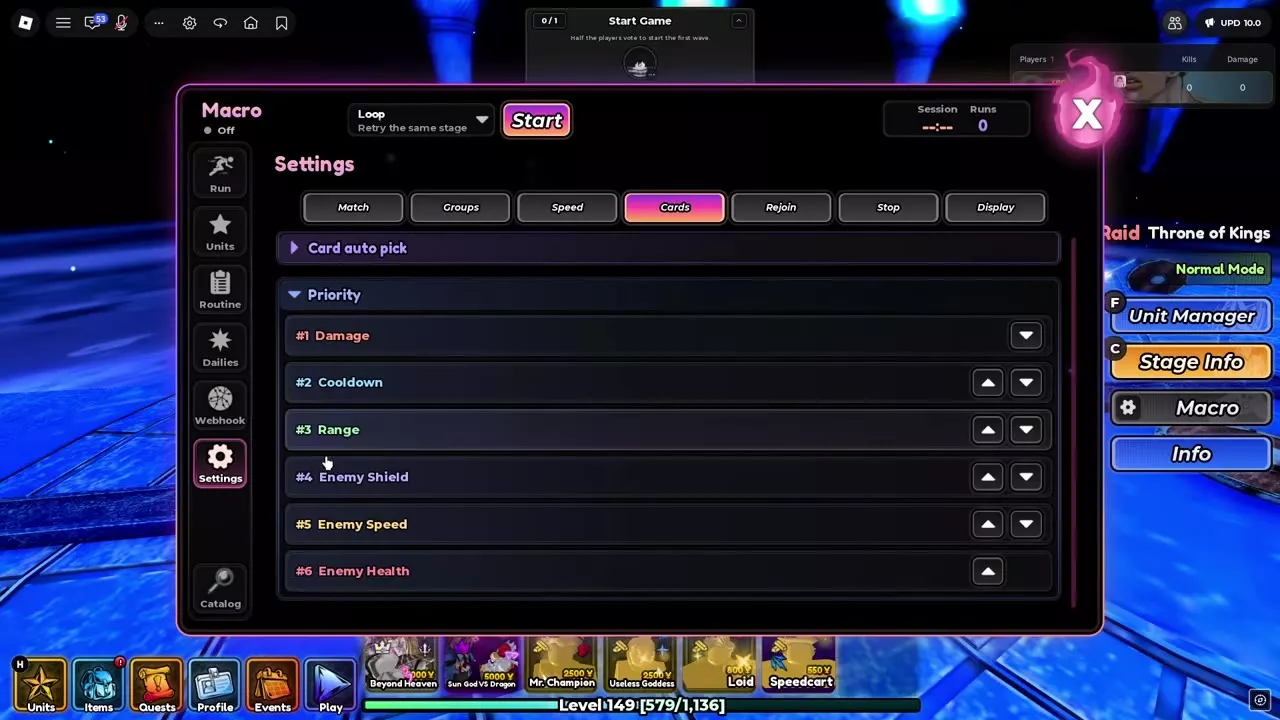
Open Settings → Cards for Card auto pick and Priority. Expand Priority and use the arrows to move categories up or down. The first entry moves down, the last moves up, and middle entries move in either direction.
For an ease-first setup, use this preference order:
| Priority | Category |
|---|---|
| 1 | Damage |
| 2 | Cooldown |
| 3 | Range |
| 4 | Enemy Shield |
| 5 | Enemy Speed |
| 6 | Enemy Health |
This order favors damage, cooldown and range before harder enemy modifiers that provide currency bonuses. It suits repeated clears where easier combat matters more than taking the harder bonus options.
In a lobby with card voting, the lobby votes on the next card; your Macro priority is your automatic preference. For Einz's Boons, enabling Auto Start, Auto Replay or Auto Next makes the game remember the last card and Small Army slots and select them for the next run.
Overlay, multiplayer and recovery
Show and move the floating panel
Open Macro → Settings → Display → In-match overlay. Configure Show the overlay, Compact, Show the circles while playing and Session summary.
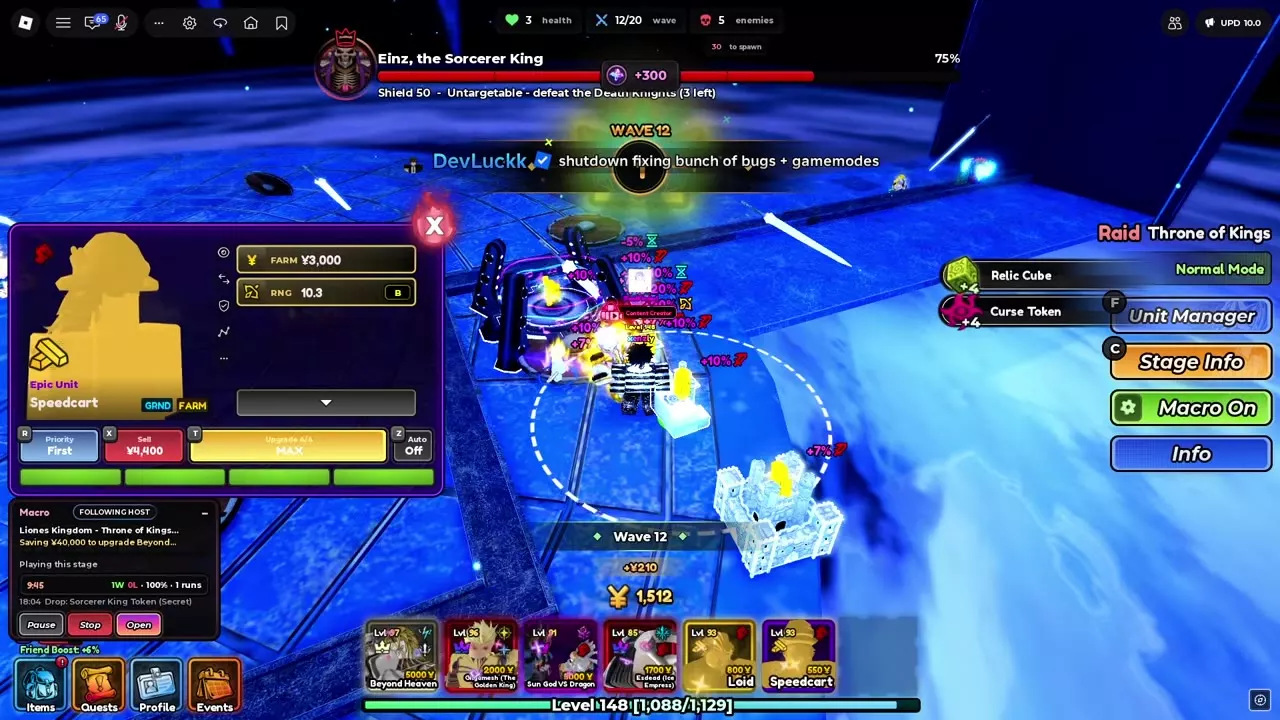
Expand the floating panel to read the current stage, run status and task. Drag it to a convenient screen position. Its saving target explains what the Macro is waiting to afford. For example, a Speedcart setup progresses from saving 550 Yen to deploy Speedcart to saving 2,500 Yen for its upgrade to Upgrade 3.
Use Session summary for run totals and win/loss information. The panel also displays elapsed time and the Next Reset countdown, which follows a 24-hour reset cycle. General game interface options are covered in Settings and Controls.
Read multiplayer status
Macro supports team play and has a matchmaking queue separate from normal players. During a hosted Macro run, the floating panel displays FOLLOWING HOST. Pause, Stop and Open remain available there.
Understand lobby returns and recovery
- Return to the lobby: the Macro pauses.
- Internet interruption: automatic reconnection sends you back into the game.
- Server-update transfer: watch for Macro: Back to your stage and the stage transfer. This recovery returns the player through the lobby to the stage.
- AFK-protection rejoin: Rejoined (AFK protection) identifies the move to a fresh server and continued Macro operation.
- Portal automation with Auto Retry: the Macro automatically selects the next portal.
Use Auto Retry for repeated attempts and Auto Next for stage progression. For portal destinations and their entry conditions, see Portals.
Presets and Discord notifications
Use Macro Presets to compare community setups by creator, map and mode, then follow the browse or import steps. Match the preset's unit bindings and placement setup to your team before starting.
To receive run summaries and rare-drop alerts in a Discord channel, follow Macro Discord Webhook Setup for the connection, test message, notification events and rarity thresholds.